Smartphone Instead of a PC: How Android 17 and External Display Mode Are Changing Phone-Based Work in 2026
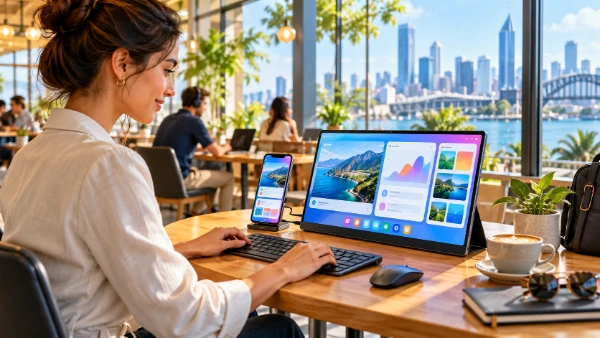
In 2026, using an Android phone as the centre of a desktop-style workspace is no longer an experimental idea reserved for enthusiasts. Supported smartphones can connect directly to an external monitor, open applications in separate resizable windows and work with a physical keyboard and mouse. Android 17 strengthens this shift by making applications more adaptable to large displays and different window sizes, while the connected-display features introduced across recent Android updates provide the practical desktop environment. The result is not a complete replacement for every laptop or desktop computer, but a much more credible option for people whose daily work revolves around email, web applications, documents, communication tools, cloud storage and other common productivity tasks. A phone can remain the device carried throughout the day and then become the main computer at a desk simply by connecting it to the right display and accessories.
Android 17 Makes Phone-Based Work More Practical
Android 17 reached Pixel devices in June 2026 and represents another important stage in Google’s effort to make Android work consistently across phones, foldables, tablets and larger displays. One of the most relevant changes for desktop-style use concerns how applications behave when they have much more screen space than they normally receive on a phone. Android applications have traditionally been designed around relatively narrow portrait screens, and some developers have restricted their apps to a particular orientation or fixed window shape. That approach becomes inconvenient when the same application is opened on a 24-inch or 27-inch monitor. Android 17 reduces these restrictions for newer applications on large displays, encouraging software to fill the available window and adjust its layout rather than remaining trapped inside a narrow phone-shaped area.
The desktop change did not begin with Android 17 itself. Google made connected-display support generally available with Android 16 QPR3 in March 2026 after an earlier development and testing period. That distinction matters because the external-monitor environment and Android 17 are complementary developments rather than a single feature introduced on the same day. Android 16 QPR3 established the stable connected-display experience, including desktop-style window management, taskbar behaviour and support for keyboard and mouse input. Android 17 then arrived with further changes that make Android applications more comfortable on larger screens. A compatible phone updated to Android 17 therefore benefits from both parts of this work: the desktop session provided by connected-display support and an operating system that increasingly expects applications to adapt to different screen sizes.
For the user, the difference is much more noticeable than the technical history behind it. Connecting a supported phone to a monitor can create a separate working area while the phone itself remains usable. Instead of simply enlarging the phone screen, the external display can show a desktop session with several applications open at once. An email window can remain beside a browser, for example, while a messaging app stays available without taking over the whole monitor. This changes the role of the smartphone. It is still a pocket device when travelling, but at a desk the same hardware can provide a workspace that feels far closer to a conventional computer. Files, accounts, messages and installed applications remain on the device already carried by the user, reducing the need to move repeatedly between a phone and a second computer.
What Happens When You Connect a Monitor
On compatible hardware, the connection can be remarkably straightforward. Google officially introduced desktop mode for Pixel 8 and newer phones that support USB-C DisplayPort output, allowing them to connect directly to a suitable USB-C monitor or through an appropriate adapter for displays using another connection such as HDMI. Google’s connected-display announcement in March 2026 also named the Pixel 8, Pixel 9 and Pixel 10 families and several current Samsung devices among the supported hardware at that time. Compatibility should still be checked for the exact phone because having a USB-C connector alone does not guarantee video output or desktop-window support. Manufacturers can also implement parts of the experience differently, so two Android phones running a similar Android version may not provide an identical desktop setup.
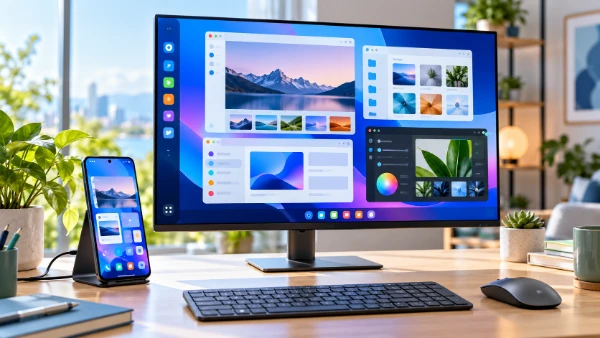
Once desktop mode is active, the external screen behaves differently from simple screen mirroring. Mirroring reproduces the phone display on a larger screen, including its shape and general arrangement. Desktop mode instead starts a separate session on the monitor. Applications can appear in individual windows that can be moved, resized, minimised, maximised or arranged beside one another. Android provides a taskbar for switching between running applications and keeping frequently used apps within easy reach. The connected display also provides familiar navigation controls, while keyboard shortcuts such as Alt+Tab can make switching between open windows much quicker. These details may sound ordinary to a desktop-computer user, but their inclusion is what makes an external monitor useful for genuine work rather than merely displaying a larger copy of a phone interface.
The quality of the result depends heavily on the applications being used. Software that already works well on tablets or foldable devices is generally better prepared for a large desktop window because its interface can reorganise itself when more space becomes available. A mail application might show the inbox and the selected message together, while a file manager can use a wider layout that requires less switching between screens. Applications built primarily around a narrow phone layout may still work, but they can look less natural when enlarged. Android 17 pushes developers further towards adaptable layouts, which should gradually reduce that inconsistency. In everyday use, this means the desktop environment itself may already feel mature while individual apps can range from excellent to merely functional.
What You Can Realistically Do Without a Laptop
For many office and administrative tasks, a supported smartphone can already cover a significant part of the work normally performed on a laptop. Web browsing, email, calendar management, document review, text editing, online forms, messaging and cloud file management are well suited to this arrangement. A physical keyboard changes the experience considerably because long emails, reports and other text can be written without relying on an on-screen keyboard. A mouse or trackpad makes selecting text, moving between windows and working with web pages easier as well. Users whose employers rely heavily on browser-based business software may find the transition particularly simple because much of the work already takes place in a browser rather than in software tied to Windows or macOS.
There are also practical advantages for people who work in several locations. A phone is already used for authentication, messages, calls, photographs, document scanning and mobile internet access, so allowing it to become the main computer reduces the number of devices that need to be carried. A worker could use the phone normally while travelling, connect it to a monitor at an office or home desk and continue with the same accounts and files. Cloud-based documents and storage fit naturally into this arrangement, but local files can also remain available on the handset. The phone’s mobile connection can be especially useful where fixed broadband is unavailable, although large downloads, frequent video meetings and cloud synchronisation can consume substantial mobile data.
Some creative and specialist tasks are becoming more realistic as well, although expectations need to remain sensible. Modern Android phones can handle photo editing, short-form video work, content management, remote access to other computers and a growing selection of professional applications. A larger monitor makes those tools far easier to use than they are on a six-inch phone screen. Remote desktop services are another useful option: the smartphone can provide the screen, keyboard and mouse environment locally while a more powerful computer elsewhere performs demanding work. This does not mean the phone itself has suddenly gained workstation-class capabilities, but it does widen the number of situations in which carrying a separate laptop is unnecessary.
The Hardware Setup That Makes It Work
The first requirement is a phone that supports both external video output and the relevant desktop features. This should be confirmed for the exact model rather than assumed from the Android version. Google’s March 2026 Pixel update, for example, made the new desktop mode available on Pixel 8 and newer mobile devices and specified USB-C DisplayPort as a requirement for the external-monitor connection. A monitor with compatible USB-C input offers one of the cleanest arrangements because a single cable may carry the image and, on suitable equipment, provide power to the phone at the same time. An HDMI monitor can also be used with an appropriate USB-C adapter or dock when the phone supports video output.
A keyboard and mouse make the largest difference after the monitor itself. Bluetooth accessories keep the desk relatively uncluttered, while wired devices can be attached through a USB-C hub or monitor with integrated USB connections. A dock can be useful when several accessories need to operate together because it may provide display output, USB ports, wired networking, storage connections and charging through one connection to the phone. None of these extras is mandatory for basic desktop use, but the arrangement becomes much closer to a normal computer when the phone can remain connected to power and all desk accessories are ready as soon as it is plugged in.
Power management deserves more attention than it might initially seem to require. Driving an external monitor session, maintaining several applications and perhaps using mobile data or a video call increases the workload on the phone. Long sessions are therefore more comfortable when the handset can charge while connected. A good dock or USB-C monitor with suitable power delivery can solve this without adding another cable directly to the phone. Heat can also become noticeable during sustained heavy use, particularly if the device is simultaneously charging, transferring files and running demanding applications. For ordinary browser, email and document work this is less of a concern, but users planning to rely on the phone for an entire working day should treat charging and ventilation as part of the desk setup rather than afterthoughts.
Where a PC Still Has the Advantage
The arrival of a credible desktop mode does not mean Android phones can replace conventional computers for every type of work. One of the biggest differences remains software. Android versions of familiar applications may offer fewer functions than their Windows or macOS equivalents, and some specialist programs simply do not exist for mobile operating systems. Complex spreadsheets, professional video production, large design projects, software development, engineering applications and other demanding workflows can therefore remain much more practical on a traditional computer. Web versions of professional tools can sometimes close the gap, but they do not always offer the same functions, file handling or peripheral support as full desktop software.
Application behaviour also remains uneven. Android’s window management can provide a desktop-like framework, but it cannot automatically redesign every application. Some apps respond well when stretched across a large monitor, while others retain interfaces clearly intended for touch screens. Android 17 addresses part of this problem by requiring newer apps targeting Android 17 to behave more flexibly on sufficiently large displays, even when developers previously attempted to lock orientation or resizing. That should improve consistency over time as more software targets the newer Android version. It does not immediately change every existing application, however, and users may still encounter layouts that waste screen space, controls that are more comfortable with touch than a mouse or features that behave differently from their desktop equivalents.
Hardware compatibility is another reason to avoid assuming that any modern Android phone can become a desktop computer. Google explicitly notes that desktop windowing and connected displays are not available on every device and that the experience can vary by manufacturer. The phone must support the necessary display connection, the software must include the required desktop features and the monitor or adapter must be compatible with the chosen connection. These requirements are manageable when buying equipment specifically for this purpose, but they reduce the convenience of expecting an unknown monitor and cable to work automatically. A laptop remains more predictable when a user regularly moves between offices, meeting rooms, hotels and other locations with uncertain accessory setups.
Why Android 17 Still Matters for the Next Stage of Mobile Work
Android 17 is important because Google is no longer treating large-screen behaviour as an unusual case that developers can largely ignore. For applications targeting Android 17, traditional restrictions on orientation, resizing and aspect ratio no longer apply on displays above the defined large-screen threshold. In practical terms, an app designed for the new version is expected to cope with a wide landscape window, a resized desktop window and other layouts instead of insisting on the narrow shape of a phone. Users do not need to understand the technical rules behind this change, but they should gradually see the result: more applications that make sensible use of a monitor instead of simply stretching a mobile interface.
Android 17 also develops multitasking beyond the connected monitor. Its Bubbles feature can place supported applications into compact floating windows, while larger Android devices can use a dedicated bubble bar to keep these tasks accessible. Combined with desktop windowing, freely resizable app windows and improved support for physical input devices, these changes show a clear move towards an Android environment where an application is no longer expected to occupy one fixed full-screen rectangle. The phone, tablet and external monitor are becoming different ways to access the same applications depending on where the user is working and how much screen space is available.
For most people, the strongest reason to consider this setup in 2026 is therefore not that a smartphone has become universally better than a PC. It is that the dividing line between the two categories has become less rigid. Someone whose working day consists mainly of browser tabs, email, messaging, documents, cloud files and online meetings may already be able to leave a laptop at home in situations where a monitor and peripherals are available. People who depend on specialist desktop software or consistently heavy workloads will still have good reasons to use a conventional computer. Android 17 and modern connected-display support make the choice more flexible: the phone can now serve as a genuine desktop-style work device when the task suits it, rather than functioning only as a small screen that happens to connect to a monitor.